How to paste a screenshot into Claude Code on a Mac
Claude Code reads images. A screenshot of a broken layout or an error dialog usually explains a bug faster than a paragraph does. There are four ways to get one into a Claude Code session on macOS, and the most common one has a catch: the paste key is Control-V, not Command-V.
1. Paste from the clipboard with Control-V
Copy a screenshot, click into the Claude Code prompt, and press Control-V. Claude Code inserts an [Image #1] chip where the cursor is, and you type your prompt around it.

Command-V is the terminal's text paste, and an image on the clipboard is not text, so in most terminals nothing happens. iTerm2 is the exception: Claude Code's own docs list Command-V as working there too. On Windows and WSL the key is Alt-V.
You can paste several images into one prompt; each gets its own number, so you can write "compare [Image #1] with [Image #2]". Command-click a chip to open that image in your default viewer and check you pasted the right one.
Getting the screenshot onto the clipboard. macOS saves screenshots to the Desktop by default. To copy one instead, hold Control as well: Control-Shift-Command-4 copies a selected area, Control-Shift-Command-3 the whole screen. Or click the floating thumbnail after a capture and use Copy.
2. Drag the image into the terminal
Drag a screenshot from Finder, the Desktop, or the macOS thumbnail into the Claude Code window. Claude Code attaches it the same way. This is the fastest route when the screenshot already exists as a file, and it avoids the clipboard altogether.
3. Give Claude Code the path
Claude Code can read an image file from disk:
Look at ~/Desktop/Screenshot 2026-10-07 at 10.14.18.png and fix the totalIt works for one file. For several it gets slow: you need the exact file name, and macOS names screenshots by date and time.
4. Save screenshots where Claude Code already looks
The first three methods need you to hand over every image, every time. The fourth puts screenshots inside the project, with an index Claude Code can read, so you can just ask:
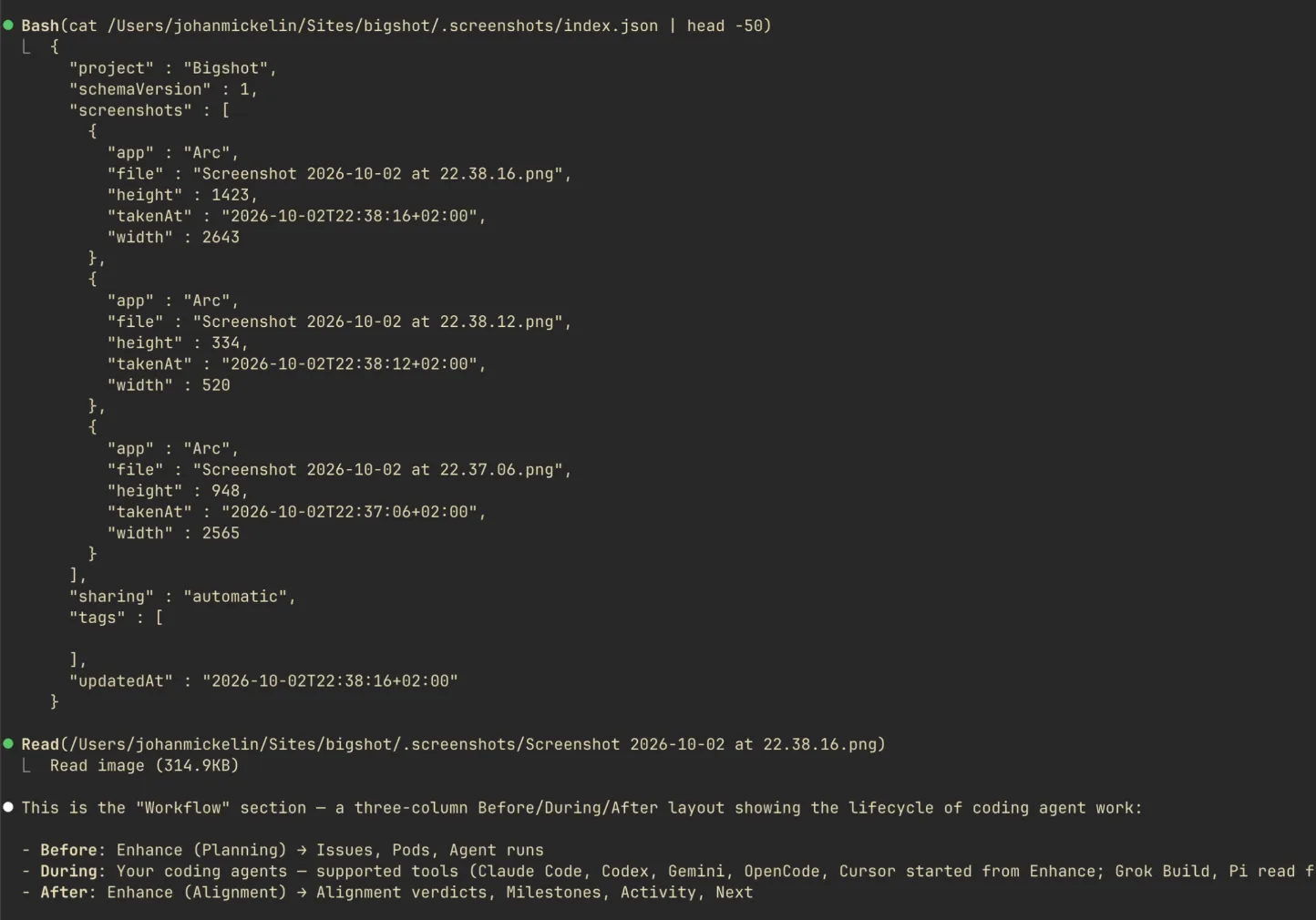
look at my last screenshot and fix the spacing I markedThat is what screenshot context in Bigshot does. While a Project is active, captures go into .screenshots/ in your repository, kept out of Git, and each one is listed in .screenshots/index.json with the time, the app it came from, your note, and the text in the image. A few lines in CLAUDE.md tell Claude Code where to look. The details are in Let your agent find your screenshots.
Which method to use
| Situation | Use |
|---|---|
| One screenshot, right now | Control-V |
| The screenshot is already a file | Drag it in |
| A file you know the path of | Type the path |
| Several screenshots over one task, or ones to refer back to later | Save them into the repo |
| You are on a remote machine over SSH | Copy the file to that machine, then give the path |
Make the screenshot worth reading
Claude Code can only act on what the image shows, and large images are scaled down before the model sees them. On models before Claude 4.7, a whole Retina screen arrives at under half its width, small text included. So:
- Crop to the problem. A cropped panel is cheaper and easier to read than a full screen. See How big should a screenshot be for Claude?
- Point at it. An arrow and three words ("total ignores coupon") beat a paragraph of prompt. See How to annotate a bug screenshot.
- Hide what the agent should not read. Tokens, emails and customer data in a screenshot end up in the conversation. See How to redact a screenshot.
With Bigshot
Bigshot keeps your recent captures in the notch. Capture with ⌃⌥A, mark it up in the editor if it needs it, then drag the thumbnail from the island straight into the Claude Code window. Each capture is also on the clipboard, so Control-V works too. Both are free.
If pasting does nothing, see Claude Code image paste not working.
More from the blog
How accurate is Code Lens? Benchmarks on 20 stacks, and EmbeddingGemma 2 on a Mac
Code Lens opens the line that puts on-screen text there for 82% of lines across 20 app stacks, against 34% for grep. What EmbeddingGemma 2 adds, how fast it runs on an M1 Pro, and where it doesn't help.
Save screenshots in your repo so Claude Code and Codex can find them
Instead of pasting screenshots into every conversation, keep them in the project with an index the agent reads. How it works, what the index holds, and how to keep it out of Git.
How to give Codex a screenshot: CLI, IDE extension and Mac app
Every way to attach a screenshot in OpenAI's Codex — the --image flag, pasting in the CLI, Shift-drag in the IDE extension and the app, Appshots — and how to let Codex find screenshots in your repo.