How to give Codex a screenshot: CLI, IDE extension and Mac app
Codex reads images in all its forms: the command-line tool, the IDE extension, and the desktop app. How you attach one differs between them.
Codex CLI: the --image flag
Pass a screenshot when you start a task with -i or --image:
codex -i screenshot.png "Explain this error and suggest the smallest fix"For several images, separate the paths with commas, or repeat the flag:
codex --image before.png,after.png "Compare these states and list the regressions"Codex accepts common formats, including PNG and JPEG.
Codex CLI: paste into the composer
In an interactive session you can also paste an image into the composer. On macOS that is Control-V, as in Claude Code; Command-V pastes text. If nothing attaches, check that the image is actually on the clipboard: macOS screenshot shortcuts save a file unless you hold Control as well (Control-Shift-Command-4 copies an area).
IDE extension and Codex app: hold Shift while you drag
In the IDE extension, drag an image into the prompt composer while holding Shift. Without Shift, the editor takes the drop and opens the file instead. The Codex app for Mac works the same way: hold Shift while dragging into the composer.
Codex app: Appshots
The Codex app for Mac has a built-in shortcut, Appshots: press Command twice to attach the frontmost window. Codex gets both a screenshot and the window's text, including content scrolled out of view. It is the fastest option when the thing you want to show is a whole window in the Codex app. It does not crop, annotate or redact, and the CLI and IDE extension do not have it.
Let Codex find screenshots in the repo
Each method above hands over one image at a time, in one session. Codex also reads AGENTS.md and the files in your repository. Screenshots saved in the project, with an index describing them, can be found by name later without being attached at all:
look at the screenshots tagged checkout and fix the total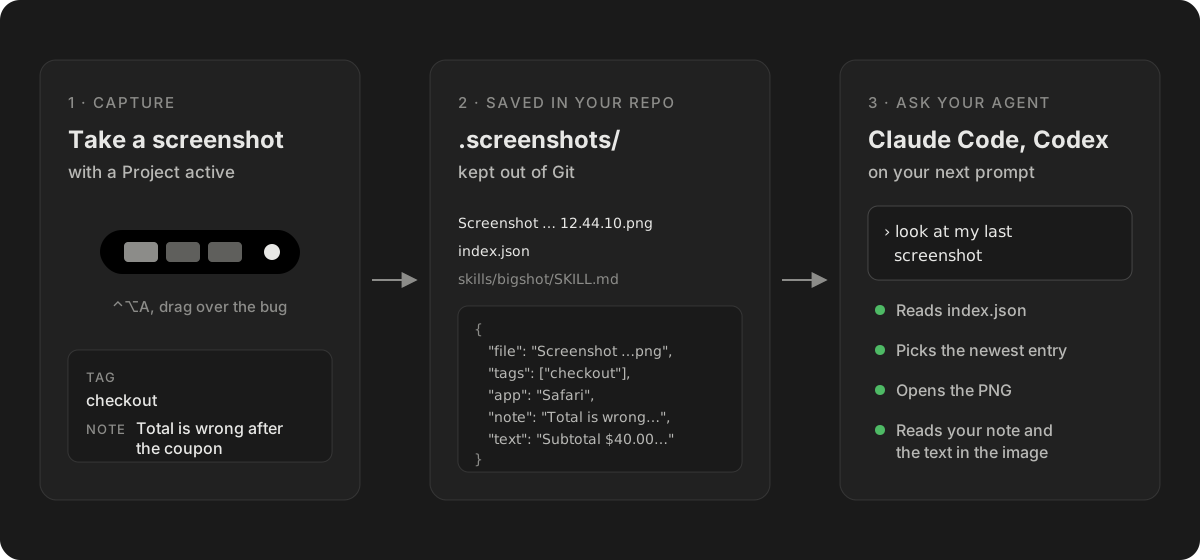
This is what Bigshot's screenshot context does. It saves captures in .screenshots/, keeps the folder out of Git, writes index.json with tags, notes, the source app and on-device OCR text, and adds a short block to AGENTS.md so Codex knows where to look. See Let your agent find your screenshots.
Which to use
| You are in | Attach with |
|---|---|
| Codex CLI, starting a task | codex -i file.png "…" |
| Codex CLI, mid-session | Control-V, or type the file's path |
| IDE extension | Shift-drag into the composer |
| Codex app | Shift-drag, or Appshots for a whole window |
| Any of them, over several prompts | Screenshots saved in the repo |
Before you attach
- Crop. Codex sees what you send; a full screen spends its attention on everything around the bug.
- Mark it. Box the element and add three words. See How to annotate a bug screenshot.
- Redact. API keys and customer data in a screenshot are sent along with it. See How to redact a screenshot.
Bigshot does all three in one editor, and its island under the notch keeps recent captures ready to drag into the Codex composer (with Shift) or a terminal.
More from the blog
How accurate is Code Lens? Benchmarks on 20 stacks, and EmbeddingGemma 2 on a Mac
Code Lens opens the line that puts on-screen text there for 82% of lines across 20 app stacks, against 34% for grep. What EmbeddingGemma 2 adds, how fast it runs on an M1 Pro, and where it doesn't help.
How to paste a screenshot into Claude Code on a Mac
Control-V, not Command-V. The four ways to get a screenshot into Claude Code on macOS, which one to use when, and how to make the image worth reading.
Save screenshots in your repo so Claude Code and Codex can find them
Instead of pasting screenshots into every conversation, keep them in the project with an index the agent reads. How it works, what the index holds, and how to keep it out of Git.