Download Bigshot
Free to download and keep. Capture, the editor, and the island work without a licence.
Getting started
The Setup Guide opens the first time you start Bigshot and takes you through these steps.
- Install
Open the disk image, drag Bigshot into Applications, and open it. The Setup Guide opens on its own.
- Allow Screen Recording
Switch Bigshot on in System Settings › Privacy & Security, in the Screen Recording list.
- Pick your screenshot keys
Use ⇧⌘3 and ⇧⌘4, which Bigshot takes over from macOS for you, or Bigshot's own keys such as ⌃⌥A.
- Take a screenshot
Press the key and drag over part of the screen. The screenshot goes to your Desktop, the clipboard and the island.
- Try the island
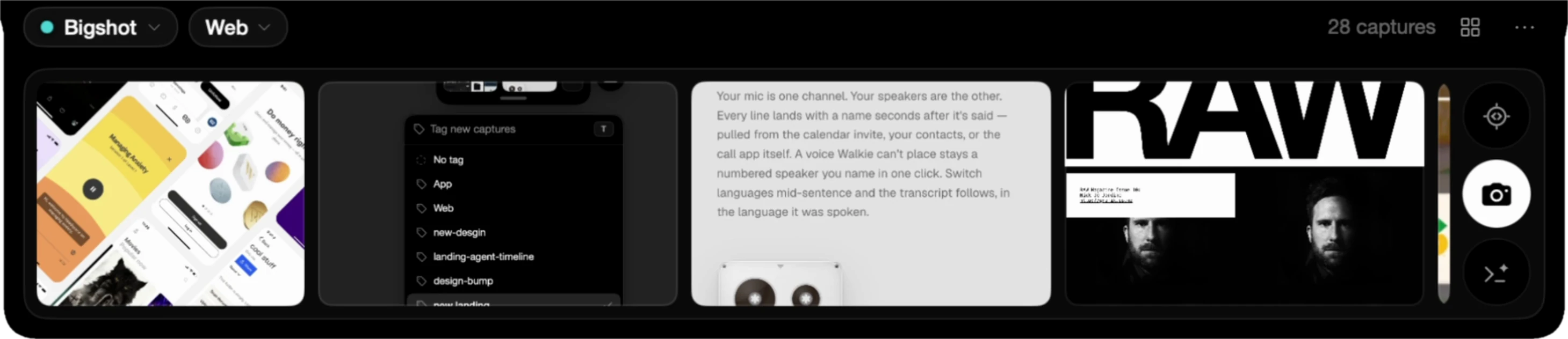
Hover the notch for your latest screenshots, hold the camera to change mode, and click the notch for everything.
- Find Bigshot later
No Dock icon and no window: Bigshot is in the notch and in the menu bar.
If something goes wrong
- Updating from an older version
- Delete /Applications/Bigshot.app before copying the new one in. macOS caches icons by path and keeps showing the old one otherwise.
- Captures fail although Screen Recording is on
- Quit Bigshot and open it again. If it still fails, remove Bigshot in System Settings › Privacy & Security › Screen Recording, add it again, and reopen.
- macOS won't open an older build
- Builds before notarization can be blocked. Click Open Anyway at the bottom of System Settings › Privacy & Security. Current releases open normally.
Purchase the full version?
A licence adds Smart capture, the full island, Projects, screenshot context for agents, Hooks, and Agent Runs. One-time purchase.
See pricing