How to redact a screenshot on Mac before you send it to an AI agent
A screenshot of a bug often shows more than the bug: a customer's email in a table, an API key on a settings page, a name in a chat sidebar. Once an agent has read the image, that text is part of the conversation, and models read text in screenshots very well. Redact before you share, not after.
What to look for
Before a screenshot goes to an agent, scan it for:
- Credentials. API keys, tokens, passwords, connection strings, an
.envfile open in the editor, terminal output that prints secrets. - Personal data. Names, email addresses, phone numbers, addresses, payment details, including test data that looks real.
- Other people's messages. Chat and email sidebars that happen to be on screen.
- Internal details. Admin URLs, account IDs and hostnames you would not paste into a public issue.
The safest redaction is not capturing it
Crop it out, or capture less to begin with: one window instead of the whole screen, one panel instead of the window. Nothing in the image means nothing to recover.
Blur and pixelation: good for names, not for secrets
Blurring or pixelating text makes it unreadable to a person, but it does not always destroy it. Researchers have reconstructed pixelated text by pixelating guesses the same way and comparing the blocks; the open-source tool Depix is the best-known example. It works best on small block sizes and plain fonts, which is exactly what UI text is.
So:
| What is in the screenshot | Do this |
|---|---|
| A password, key or token | Crop it out. Then rotate it anyway if it was on screen in a shared capture. |
| Card numbers, government IDs | Crop out, or cover with a solid opaque box |
| Names, emails, addresses in a list | Pixelate or blur with a large block size |
| Faces and avatars | Pixelate or blur |
A solid box must replace the pixels, not sit on top of them. In a PDF, a drawn rectangle is often a separate layer that can be moved or deleted. In a PNG saved from an image editor, it becomes part of the image. Reopen the file and check before you share it.
Redacting in Preview
macOS Preview can do a solid box: open the screenshot, click the Markup button, draw a rectangle, and set its fill colour to black in the shape style controls. Save, close, and reopen to confirm the area is covered.
Redacting in Bigshot
In Bigshot's editor, press B for Redact and drag over anything that should not be readable. Redactions pixelate by default; switch to blur in Settings › General. When you save, the redaction is written into the image, and Live Text (and Bigshot's own text recognition) cannot read text under it.
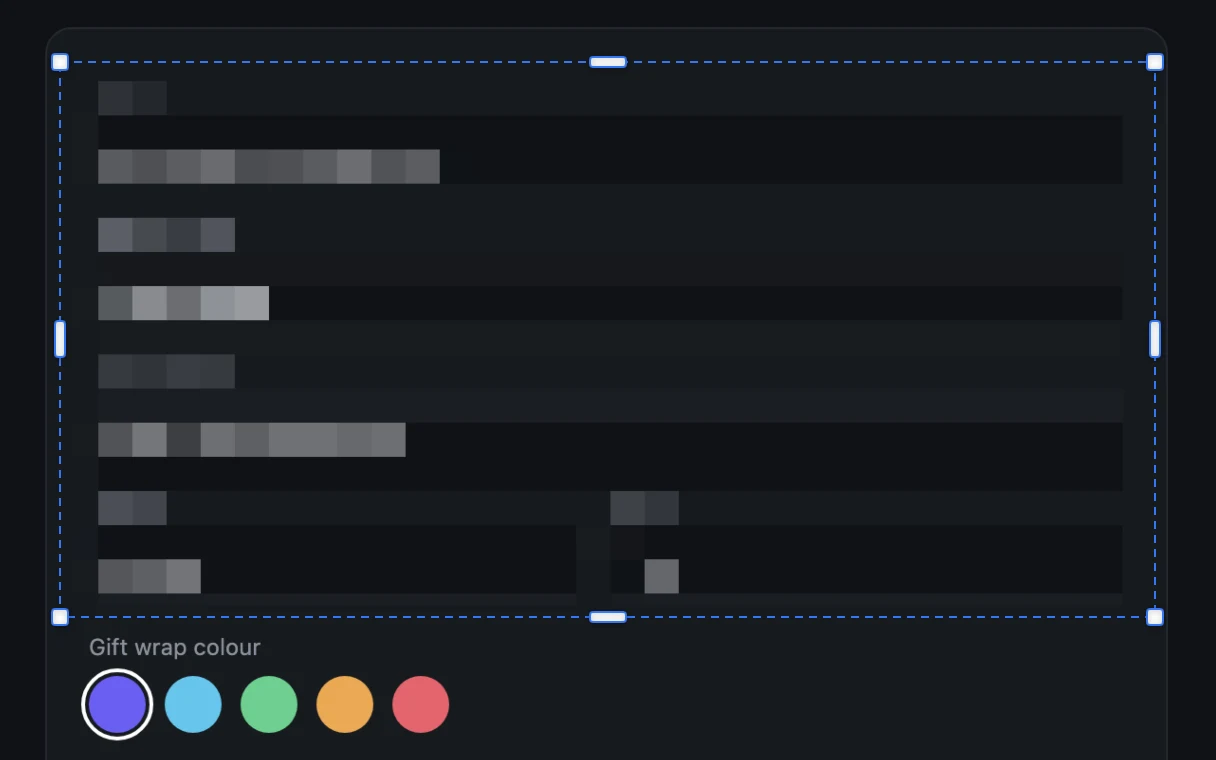
For secrets, use the Crop tool (C) instead and cut them out of the frame.
When screenshots go to agents automatically
If your screenshots are saved where an agent can read them, the order of operations matters. In Bigshot, a Project's screenshot sharing can be:
| Sharing | When the agent can see a capture |
|---|---|
| Automatic | As soon as it is taken |
| Review first | Only after you approve it with Share now |
| Off | Never |
With Automatic, a capture is listed for agents before you have had a chance to redact it. In a repository where screenshots often contain customer data, use Review first: capture, redact, save, then approve. An edited capture needs approval again, so a changed image never reaches an agent without you seeing it. Exclude keeps a capture from agents for good.
These are conventions for finding files, not a security boundary: anything with access to the folder can read it. See Let your agent find your screenshots.
If something slipped through
Excluding or deleting a screenshot does not remove it from a conversation that has already read it, or from a provider's logs. Treat a secret that reached an agent as exposed: rotate the key, change the password.
Checklist
- Capture less: one window, one panel.
- Crop out secrets; do not blur them.
- Pixelate names and personal data with large blocks.
- Save, reopen, check.
- In shared folders, review before sharing.
- If a secret got out, rotate it.
More from the blog
How accurate is Code Lens? Benchmarks on 20 stacks, and EmbeddingGemma 2 on a Mac
Code Lens opens the line that puts on-screen text there for 82% of lines across 20 app stacks, against 34% for grep. What EmbeddingGemma 2 adds, how fast it runs on an M1 Pro, and where it doesn't help.
How to paste a screenshot into Claude Code on a Mac
Control-V, not Command-V. The four ways to get a screenshot into Claude Code on macOS, which one to use when, and how to make the image worth reading.
Save screenshots in your repo so Claude Code and Codex can find them
Instead of pasting screenshots into every conversation, keep them in the project with an index the agent reads. How it works, what the index holds, and how to keep it out of Git.