How to use Capture
CaptureFree
Screenshots for coding agents.
Capture any part of the screen, mark it up, and give it to Claude Code or Codex. Drag it into the chat, or let Bigshot save it in your repo with your notes and the text in the image. Capture and the editor are free.
Five ways to capture
Pick one from the island, the menu bar, or a shortcut. Every capture is saved, copied, and waiting under the notch.
Capture modes in the user guide
Window
Takes the frontmost window straight away, nothing to select.
a whole app or dialog
How Window works
SmartLicence
Hover and the panel, card, or window under the pointer lights up. Click to take exactly that. Scroll to widen it.
a sidebar or card with clean edges
How Smart works
Frame
Put a box on screen and fire it on a timer, so you can open a menu or hover first. It comes back in the same place.
menus, tooltips, and hover states
How Frame works
Your recent shots, under the notch
Hover the notch and your latest captures drop down. Drag one into any app, copy it, or click it to open the editor. Expand it for every recent capture and the Library.
The island in the user guideThe editor
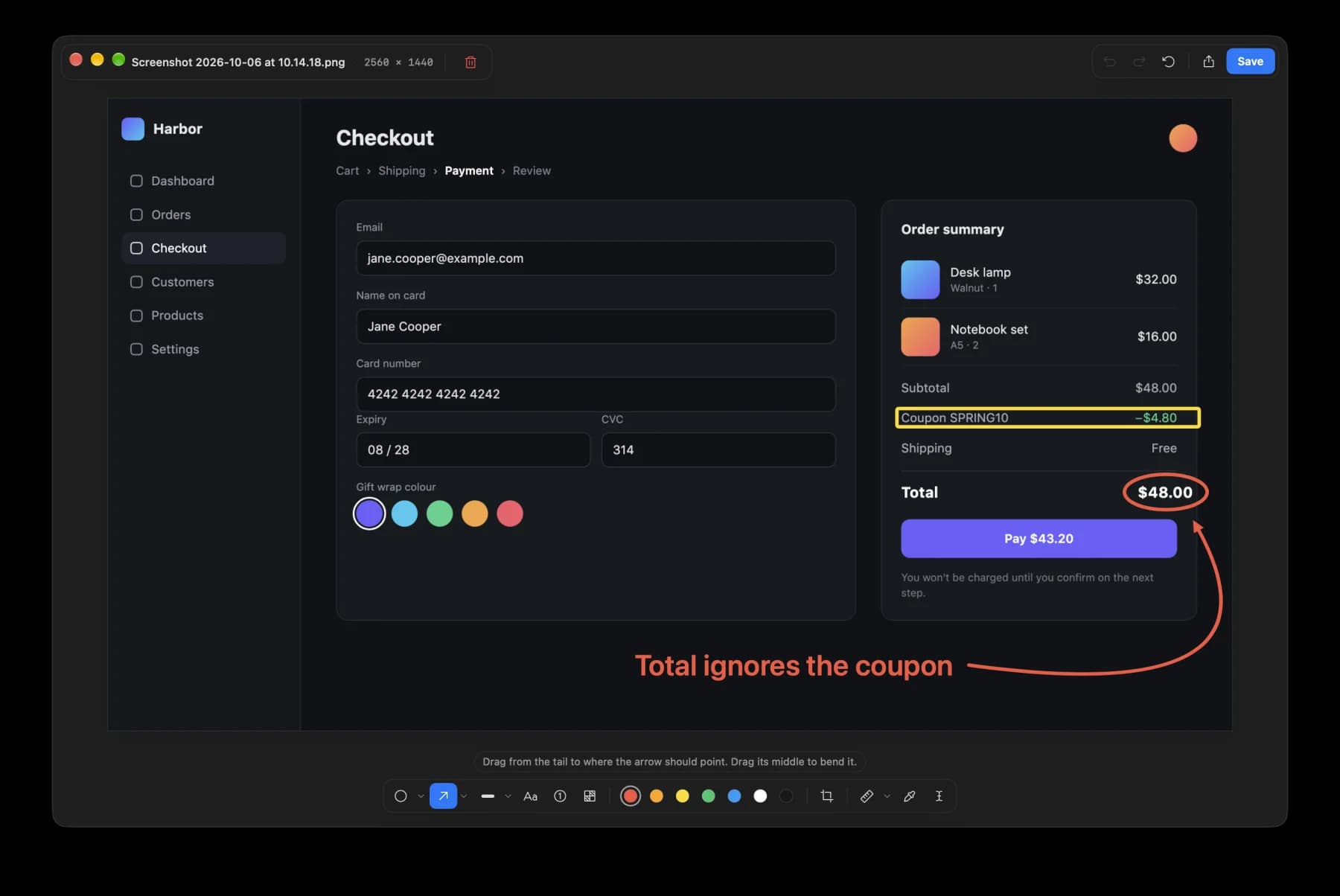
Click a capture to open it. Everything you draw stays editable until you save.
The Capture Editor in the user guideArrows, shapes, and text
Circle it, box it, highlight it, and bend the arrow around whatever is in the way.
In the guide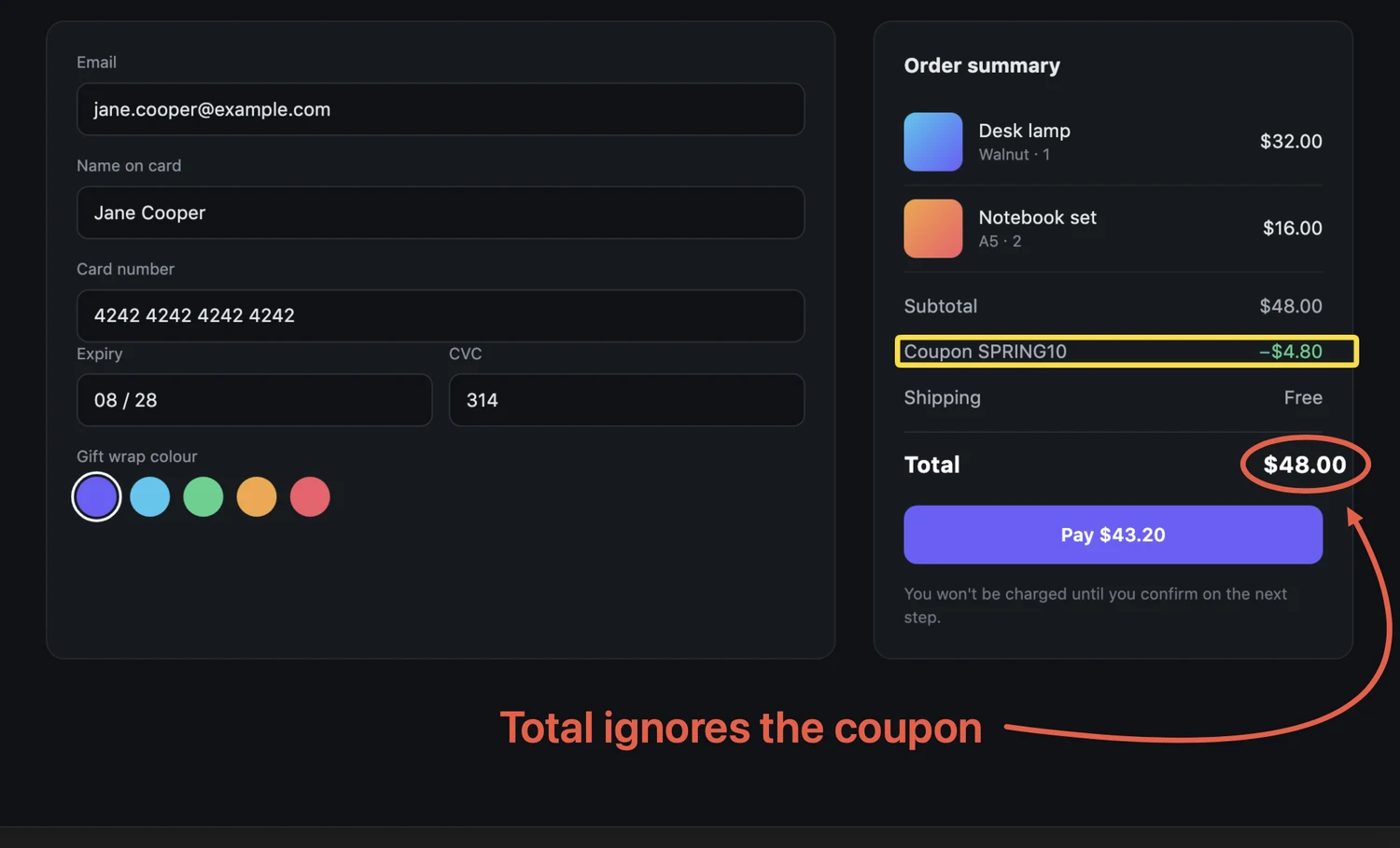
Numbered steps
Click each control in order and the discs number themselves. A spotlight dims the rest.
In the guide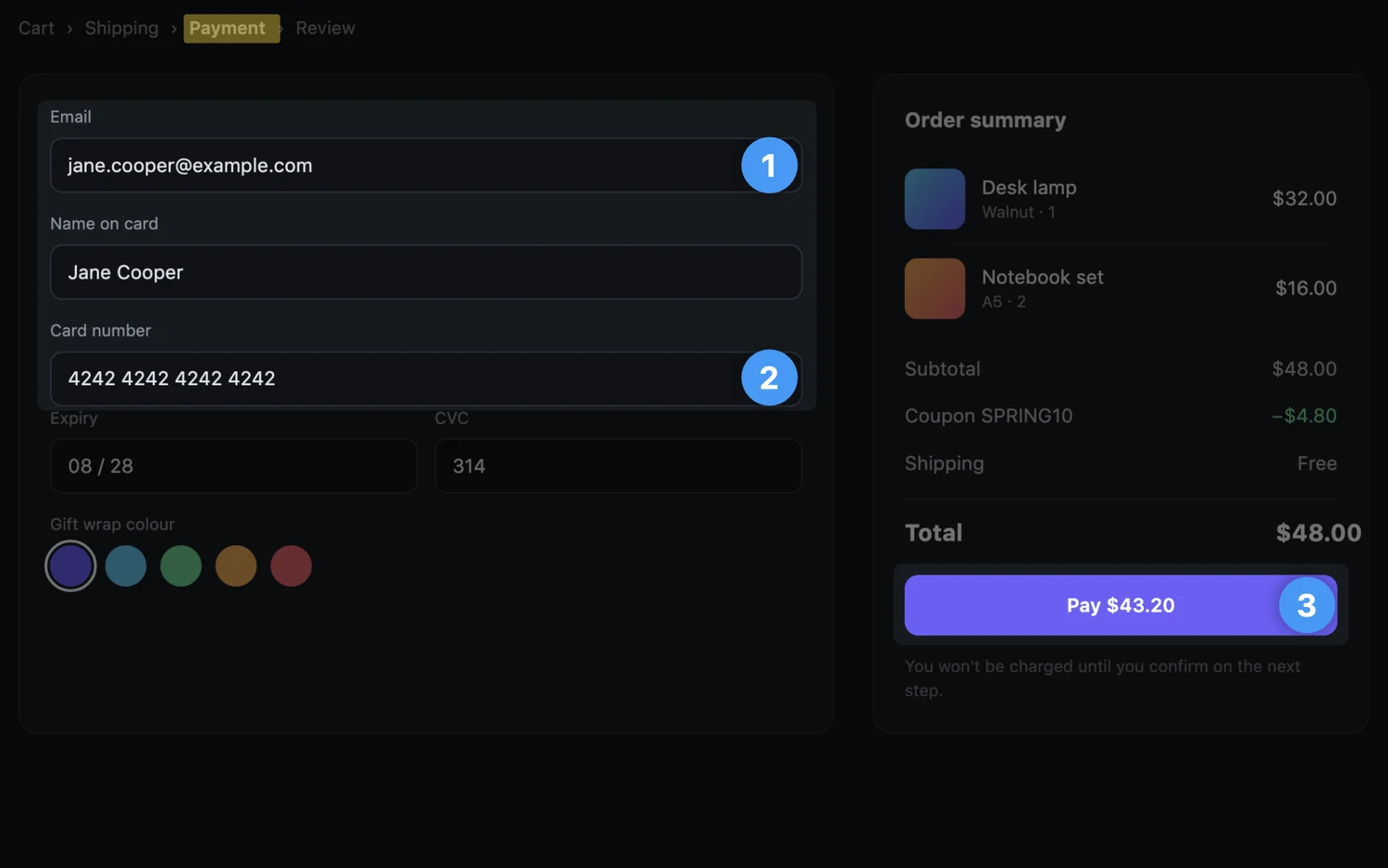
Redact
Pixelate or blur emails, names, and card numbers. Live Text can't read them back.
In the guide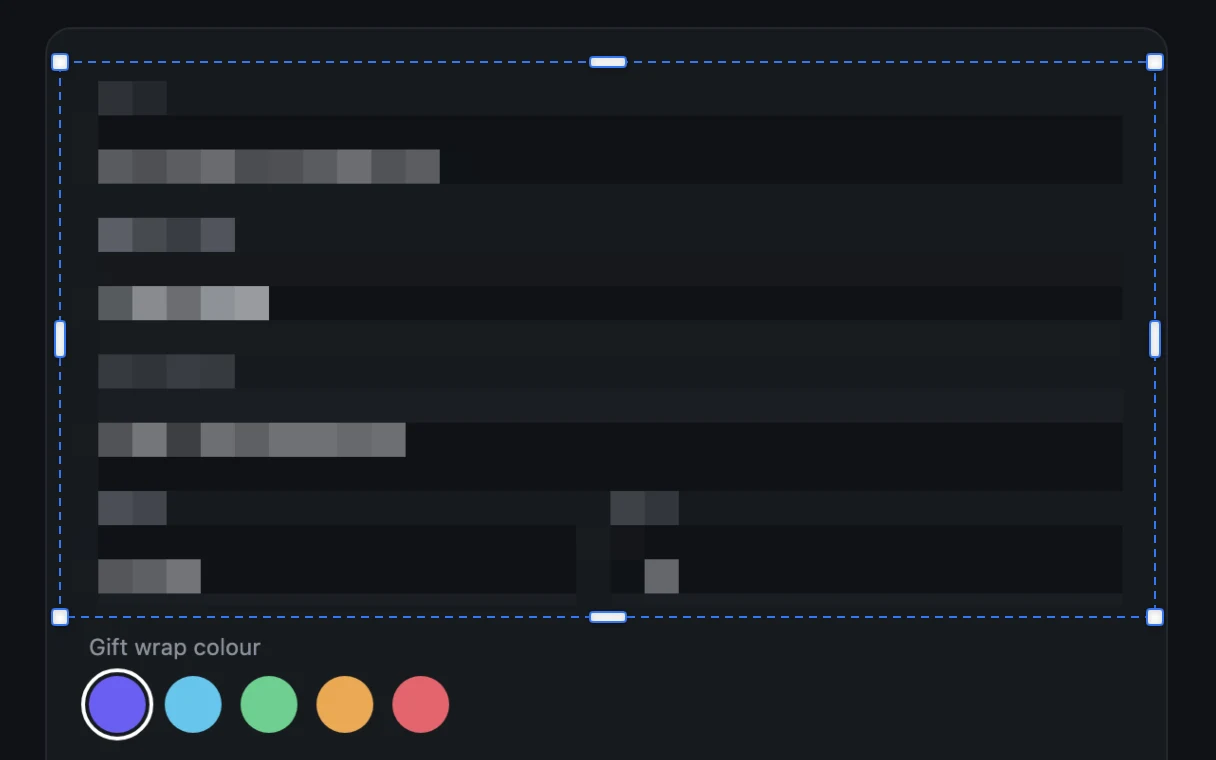
Measure in pixels
Ends snap to edges in the image, and the size is copied as you let go.
In the guide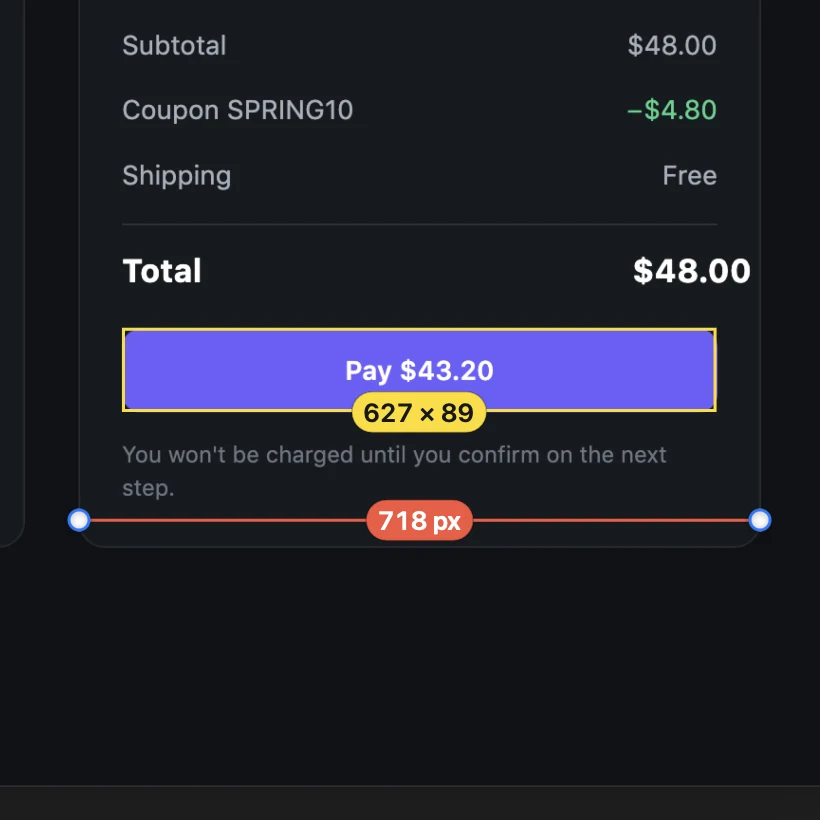
Colour picker
A loupe for the exact pixel. Copies HEX, RGB, HSL, or OKLCH.
In the guide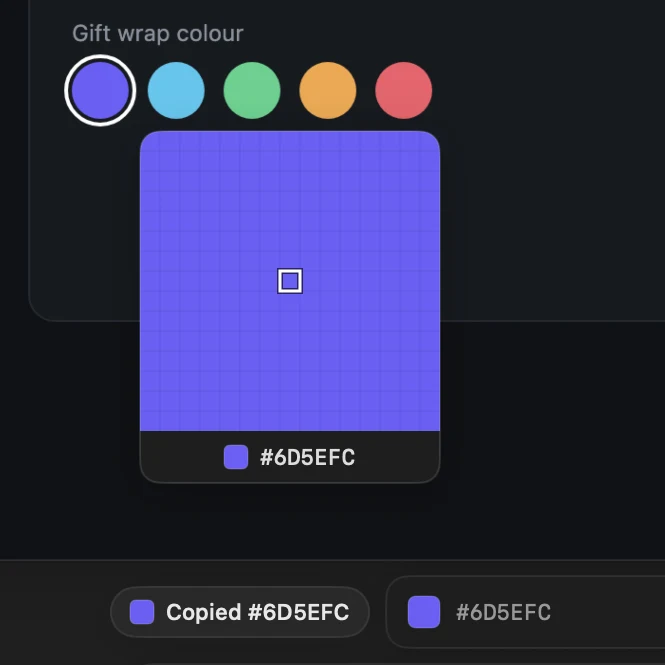
Crop that snaps
The crop box sticks to edges it finds, so a card comes out exact.
In the guide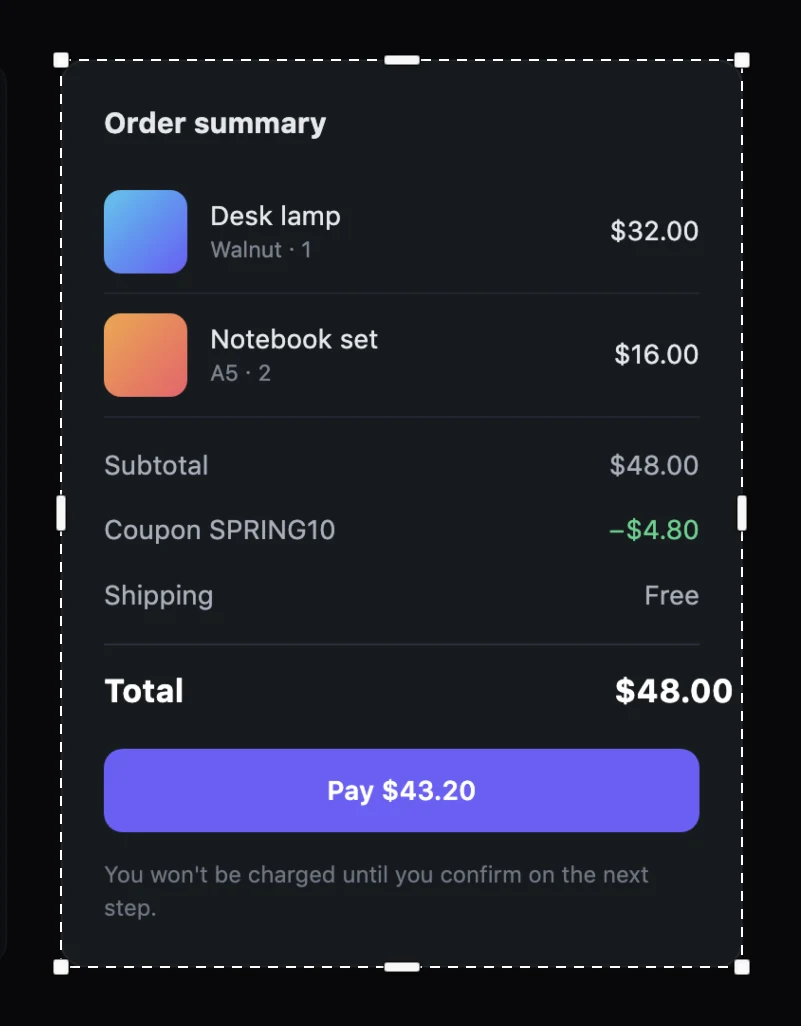
Copy the text
Select text in the screenshot and copy it, or copy all of it at once.
In the guide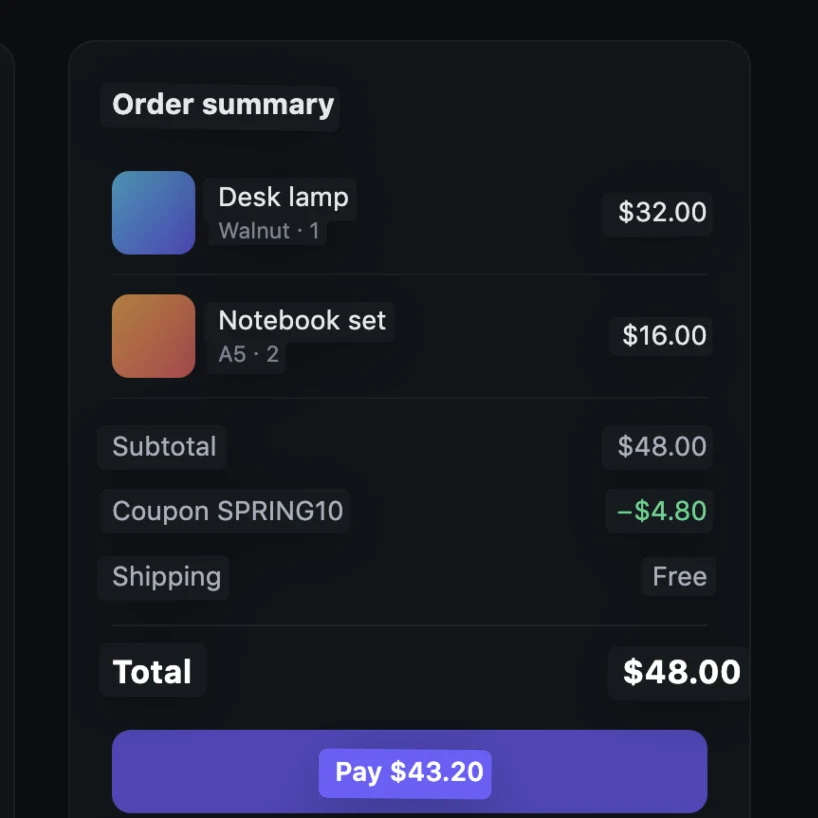
Drag it into your agent
Every capture waits under the notch. Drag it into Claude Code, Codex, or any app that takes images, or paste it from the clipboard.
Pasting screenshots into Claude CodeLicence
Or save it in your repo
Turn on screenshot context for a Project and each capture is saved in .screenshots/ with your note, its tags, the app it came from, and the text read from the image on your Mac. Bigshot adds a skill that tells your agent where to look, so you can just ask.
Look at my last screenshot and fix the total.
With Review first, nothing reaches the agent until you share it.
"takenAt": "15:05",
"tag": "checkout",
"app": "Safari",
"note": "Total is wrong
  after the coupon",
"text": "Subtotal $40.00
  Coupon −$10.00 Total $40.00"
Also in Bigshot
On the clipboard
Every capture is copied straight away, ready to paste.
Editable until saved
Move, resize, or recolour anything you drew, and undo any step.
Export
Save a copy as PNG or JPEG and keep the original.
Your shortcuts
Rebind any of them, or let Bigshot take over ⇧⌘3 and ⇧⌘4.
A tidy Desktop
Old captures can go to the Trash on their own. Keep the ones you need.
No shutter sound
Capture during a call without anyone hearing it.
Free for macOS.
Download BigshotCapture, the editor, and the island are free. A licence adds Smart capture, Projects, and screenshot context for agents.
Getting startedCapture modesThe Capture EditorThe islandShortcuts