Claude Code image paste not working on Mac: what to check
When an image pastes correctly, Claude Code shows an [Image #1] chip in the prompt. If you get nothing, plain text, or a message that no image was found, one of these is usually the cause. They are in the order worth checking.

1. You pressed Command-V
Claude Code's image paste is Control-V on macOS. Command-V is the terminal's own text paste, and an image is not text. The one exception is iTerm2, where Claude Code also accepts Command-V.
2. The screenshot is a file, not an image on the clipboard
macOS screenshot shortcuts save a file to the Desktop. They do not copy anything unless you hold Control as well:
| Shortcut | Result |
|---|---|
| Shift-Command-4 | Saves the selected area as a file |
| Control-Shift-Command-4 | Copies the selected area to the clipboard |
| Shift-Command-3 | Saves the whole screen as a file |
| Control-Shift-Command-3 | Copies the whole screen to the clipboard |
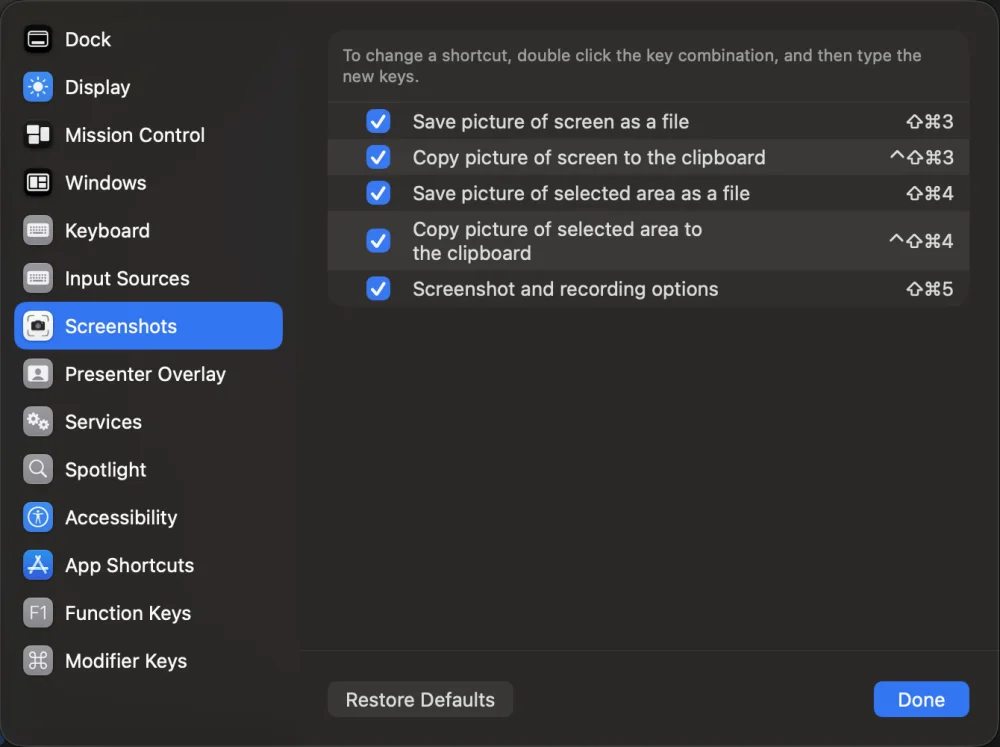
Copying the file in Finder (Command-C on the file) puts a reference to the file on the clipboard, which is not the same as the image itself. For a file, skip the clipboard: drag it into the Claude Code window, or type its path in the prompt.
3. You are working over SSH
Claude Code reads the clipboard of the machine it runs on. If it runs on a remote server and your screenshot is on your Mac, the server's clipboard is empty. Copy the file across (scp, or your editor's remote file panel) and give Claude Code the path on that machine.
4. The image is too large
Very large images can be rejected for size. A full-resolution capture of a 5K display, or a long scrolling capture, is the usual culprit. Crop to the part that matters, or capture one window instead of the whole screen. A cropped image is also easier for the model to read, because large images are scaled down before it sees them; see How big should a screenshot be for Claude?
5. Your terminal or Claude Code version has a paste bug
Image paste depends on the terminal passing the keystroke through and on Claude Code reading the macOS clipboard. Both have had bugs in specific versions and terminals; the Claude Code issue tracker on GitHub has reports for individual terminals. Update both first. If it still fails, test the same paste in Apple's Terminal: if it works there, the problem is the other terminal's settings or version.
Inside tmux or another multiplexer, the multiplexer can intercept keys before Claude Code sees them. Try outside it to confirm.
Ways around the clipboard entirely
If you need it working now:
- Drag and drop. Drag the screenshot file into the Claude Code window.
- Give the path. "Look at ~/Desktop/Screenshot …png".
- Save it in the project. Screenshots in the repository can be read by path, every time, with no clipboard involved. Bigshot does this with an index the agent reads, so "look at my last screenshot" finds the right file; see Let your agent find your screenshots.
Checklist
- Control-V, not Command-V (unless iTerm2).
- Is it on the clipboard? Hold Control when you take the screenshot.
- Over SSH? Copy the file over and use its path.
- Too big? Crop it.
- Still failing? Update Claude Code and the terminal, and test in Terminal.
For all the ways to hand Claude Code an image, see How to paste a screenshot into Claude Code.
More from the blog
How accurate is Code Lens? Benchmarks on 20 stacks, and EmbeddingGemma 2 on a Mac
Code Lens opens the line that puts on-screen text there for 82% of lines across 20 app stacks, against 34% for grep. What EmbeddingGemma 2 adds, how fast it runs on an M1 Pro, and where it doesn't help.
How to paste a screenshot into Claude Code on a Mac
Control-V, not Command-V. The four ways to get a screenshot into Claude Code on macOS, which one to use when, and how to make the image worth reading.
Save screenshots in your repo so Claude Code and Codex can find them
Instead of pasting screenshots into every conversation, keep them in the project with an index the agent reads. How it works, what the index holds, and how to keep it out of Git.