MCP server
Bigshot has a local MCP server. MCP is how coding agents use outside tools. Once the server is installed on a Project, Claude Code and Codex can search that Project's screenshots and find the code behind them. You ask in your own words, and the agent calls the server on your Mac to get the answer.
The server is a small helper inside the app. You don't run it or configure it. Agents can only read, and only what the Project shares with them.
What you need
- Bigshot, open. The server works through the app and doesn't start it.
- Claude Code or Codex on this Mac, signed in.
- A Project for the folder you work in, with Sharing set to Automatic or Review first, and some screenshots taken into it.
To find code as well as screenshots, turn on the Project's Code map. Without the image model in Settings › General, search goes by words only.
Set it up
The quickest way is the guide in the app. Click Bigshot's icon in the menu bar and choose MCP Server Guide…, or open it from here. It installs the server on a Project, gives you the command to start your agent and a question to ask, and ticks off when your agent calls the server. It's also in Settings › General › MCP server.
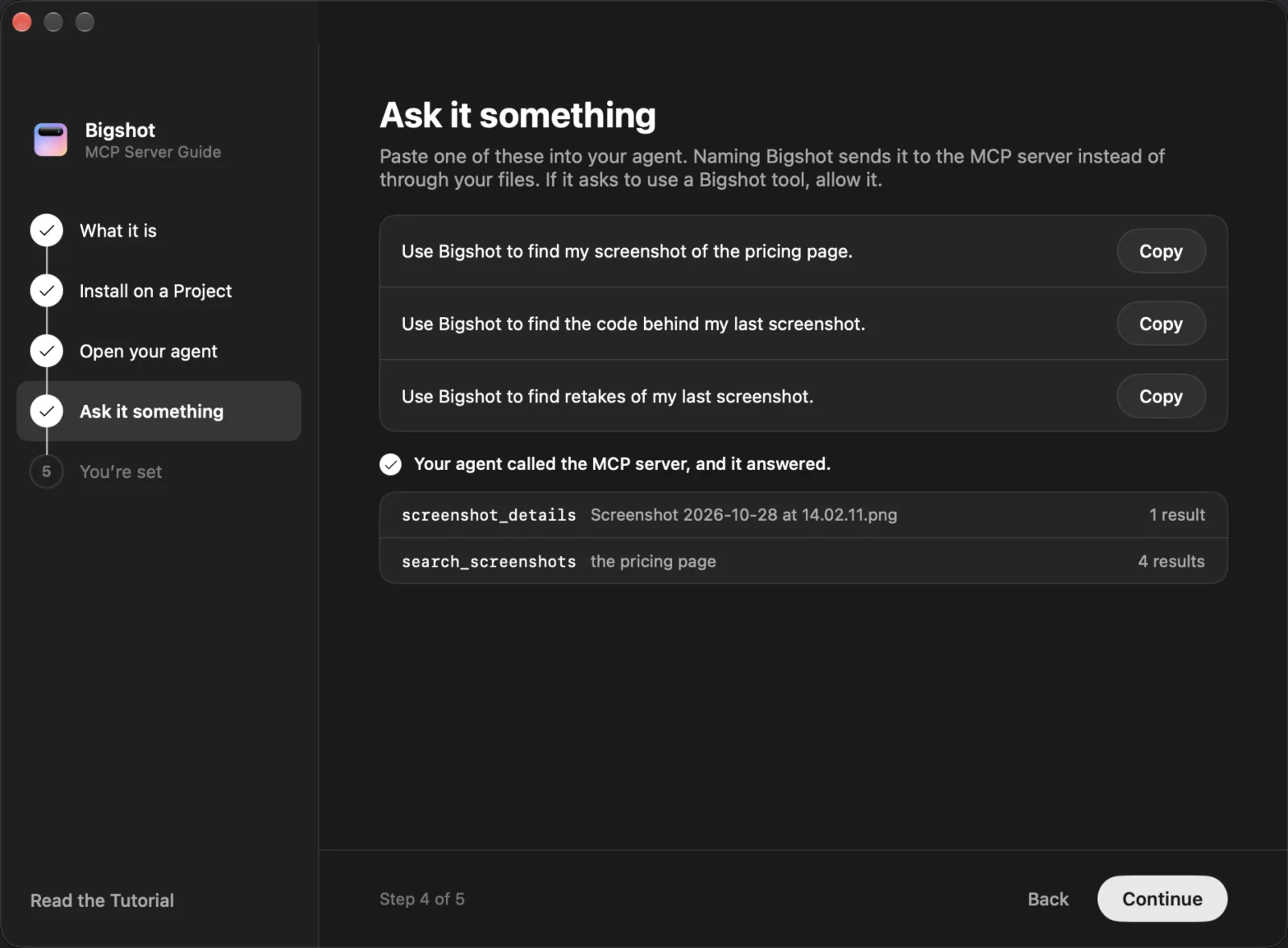
The rest of this page covers the same steps. If you turned on Install the MCP server on this Project when you created the Project, it is already installed, so go to step 3.
1. Check the switch in General
Open Settings › General › MCP server. Bigshot MCP server is on unless you turned it off. It covers every Project.

2. Install it on a Project
Open Settings › Projects and click Install MCP on the Project's row. The row then says MCP installed.
You can also do this from Edit…. Turn on Include this Project in the MCP server in the MCP server card, then click Install. Install takes effect straight away, without Save Project.
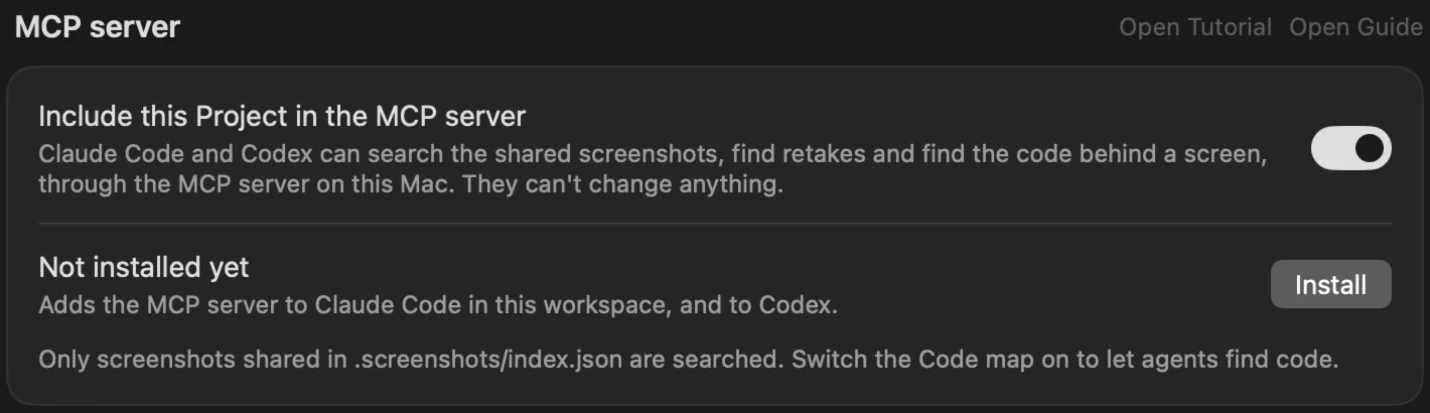
Install adds the MCP server to each agent it finds:
| Agent | What Install does |
|---|---|
| Claude Code | Adds a bigshot server for this workspace only. It is kept in ~/.claude.json, so nothing lands in your repository. |
| Codex | Adds one bigshot server for all your folders. Bigshot works out the Project from the folder Codex runs in, including a Git worktree of it. |
3. Start a new agent session
Open a new session in the Project's folder. A session that was already running won't see the new server. To check that Claude Code has it, run this in the folder:
claude mcp listYou should see bigshot with ✔ Connected.
4. Ask
Name Bigshot in your question, so the agent uses the server instead of looking through files:
Use Bigshot to find my screenshot of the pricing page.If Claude Code asks permission to use a Bigshot tool, allow it.
The agent answers from what it finds, and says so when nothing fits. This is a real answer, from a Project with no screenshot of a pricing page:
5. See what it asked
Open the Project's MCP server card. Recent calls lists each call, what it asked for and how many results it got, or Refused. The card also has questions to copy under Try it.
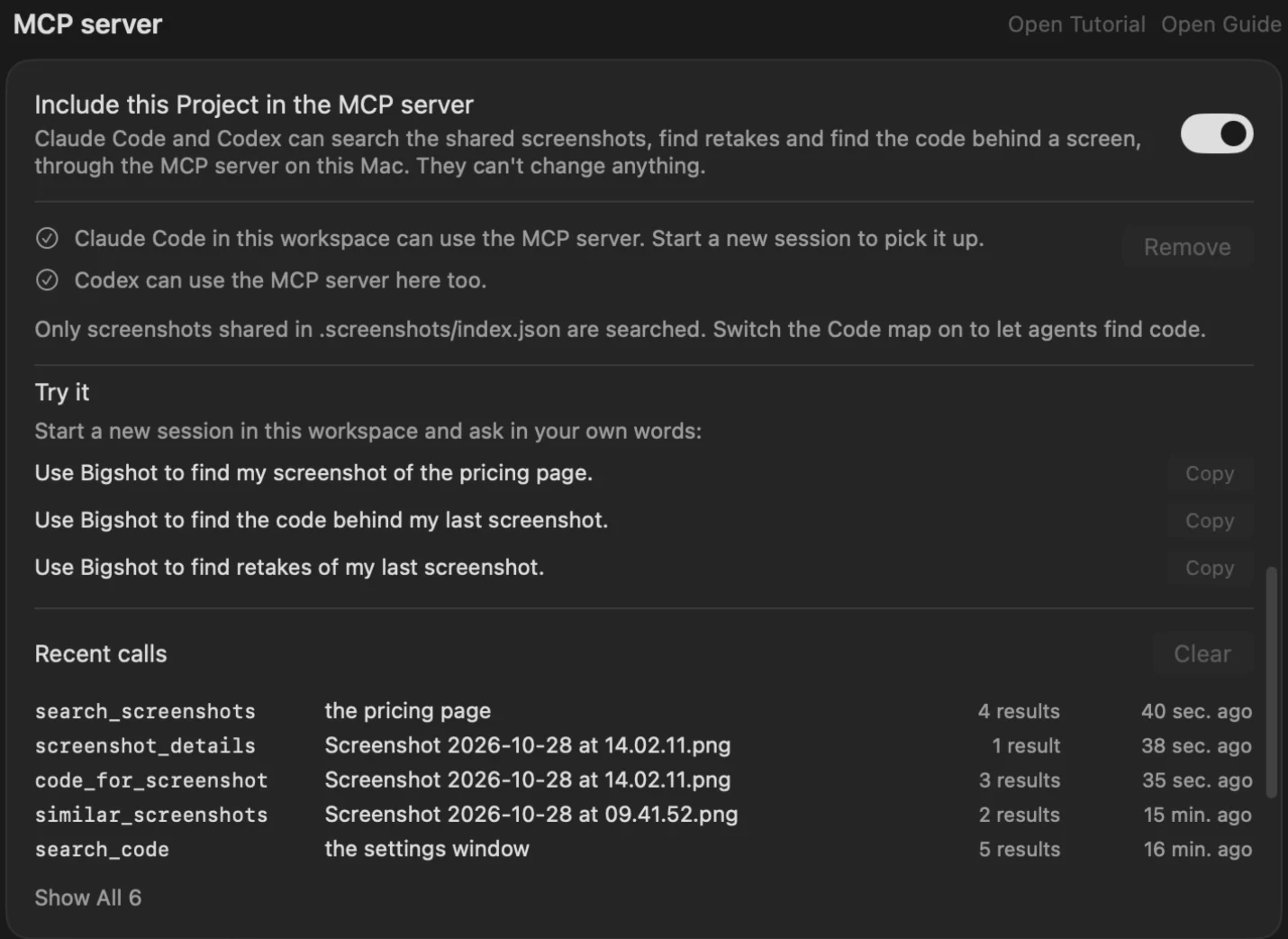
What you can ask
| Ask | What the agent does | Needs |
|---|---|---|
| Use Bigshot to find my screenshot of the pricing page. | Searches by what screenshots show and the text in them | Sharing |
| Use Bigshot to find the code behind my last screenshot. | Matches that screenshot to files and lines | Sharing, Code map |
| Use Bigshot to find retakes of my last screenshot. | Lists retakes first, then the nearest other screens, labeled as such | Sharing |
| Use Bigshot to find the code for the pricing table. | Searches the code by description | Code map |
| Use Bigshot to list my screenshot tags. | Lists the Project's tags and the active one | Sharing |
The agent chooses from six tools:
| Tool | What it does |
|---|---|
search_screenshots | Finds screenshots by description, text, note or tag, and says why each matched |
similar_screenshots | Finds retakes of a screenshot and others that look like it |
screenshot_details | Gives one screenshot's app, size, path, tags and time |
code_for_screenshot | Finds the code behind a screenshot |
search_code | Finds code from a description |
list_tags | Lists the Project's tags |
What agents can see
- Only screenshots listed in the Project's
.screenshots/index.json. With Sharing off, that is none. In Review first, it is the ones you approved. - Only the Project the connection is for. Asking for a file outside it is refused.
- Nothing can be changed. Every tool only reads.
The search runs on your Mac. What the agent receives goes to its model provider, like any file it opens.
Turning it off
| Control | Where | What it does |
|---|---|---|
| Bigshot MCP server | Settings › General | Off for every Project. Calls are refused at once and the server leaves every agent. Turned on again, everything goes back as it was. |
| Include this Project in the MCP server | The Project's card, then Save Project | Off for this Project. Calls are refused at once and the server leaves Claude Code in this workspace. |
| Remove | The Project's card | Takes the server out of Claude Code in this workspace. |
Codex has one entry for all your folders, so the server leaves Codex when no Project is still installed. Agent Runs use the same switches: with either one off, a run can't search the Project.
On the Free plan this works for your one Project. Other Projects stay locked until you have Pro.
If something goes wrong
| What you see | What to do |
|---|---|
Open Bigshot to search this Project. Bigshot isn't running, and this server doesn't start it. | Open Bigshot. The next call works, with no need to restart the agent. |
Bigshot's MCP server is off. Turn it on in Settings › General. | Turn on Bigshot MCP server. |
The MCP server is off for … Turn on "Include this Project in the MCP server" in Bigshot's Project settings. | Turn on the Project's switch and save. |
… is past the Free plan's one Project, so Bigshot keeps it locked. Bigshot Pro unlocks it. | Use your first Project, or upgrade. |
No Bigshot Project has … in its workspace, so there are no screenshots to search here. | Run the agent from inside the Project's folder. |
… has no Code map. | Turn on the Code map in the Project's settings. |
… isn't shared with agents in this Project. | Check the file is in .screenshots/index.json. Sharing may be off, or the capture not approved yet. |
| The agent doesn't use Bigshot | Start a new session, and name Bigshot in your question. |
claude mcp list doesn't show bigshot, though the card says it is installed | Click Remove, then Install. This puts it back if it was removed by hand. |
| The card shows a command with Copy | Bigshot couldn't add the server itself, or Claude Code isn't installed yet. Run the command in the workspace. |
Other agents
Install covers Claude Code and Codex, the two agents Bigshot is tested with. Other MCP clients that start a local command may work too. Point them at the server inside the app:
{
  "mcpServers": {
    "bigshot": {
      "command": "/Applications/Bigshot.app/Contents/Helpers/bigshot-mcp",
      "args": ["--project", "YOUR-PROJECT-ID"]
    }
  }
}
To get the Project's id, install it for Claude Code and run claude mcp get bigshot in its folder. Without --project, the server uses the folder the client starts it in.