How to use Capture Export
Frame a screenshot and export it.
Open a capture in its own window. Add a background and a frame, pick a size, and copy or save it.
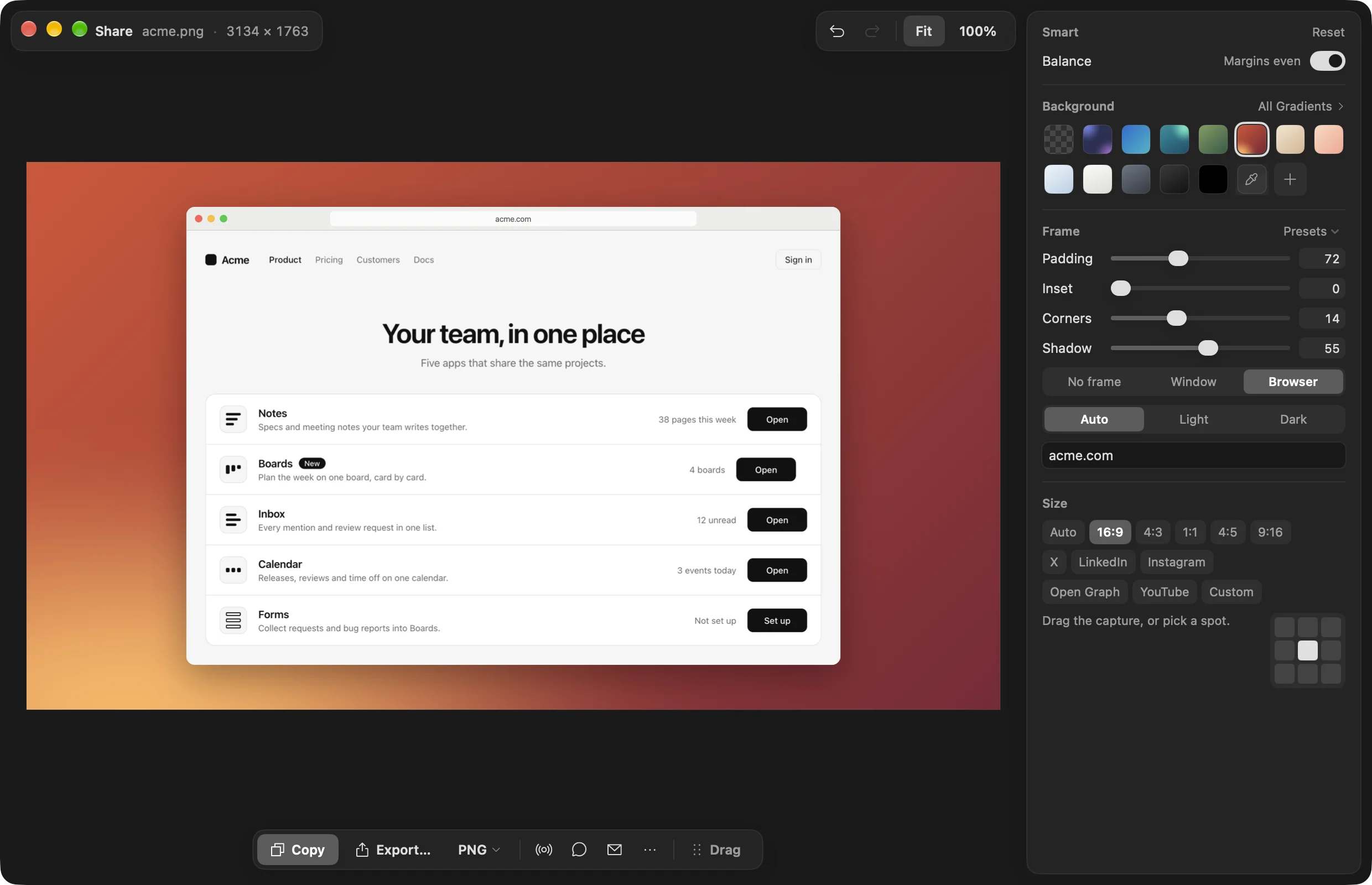
Background, frame, size
Background
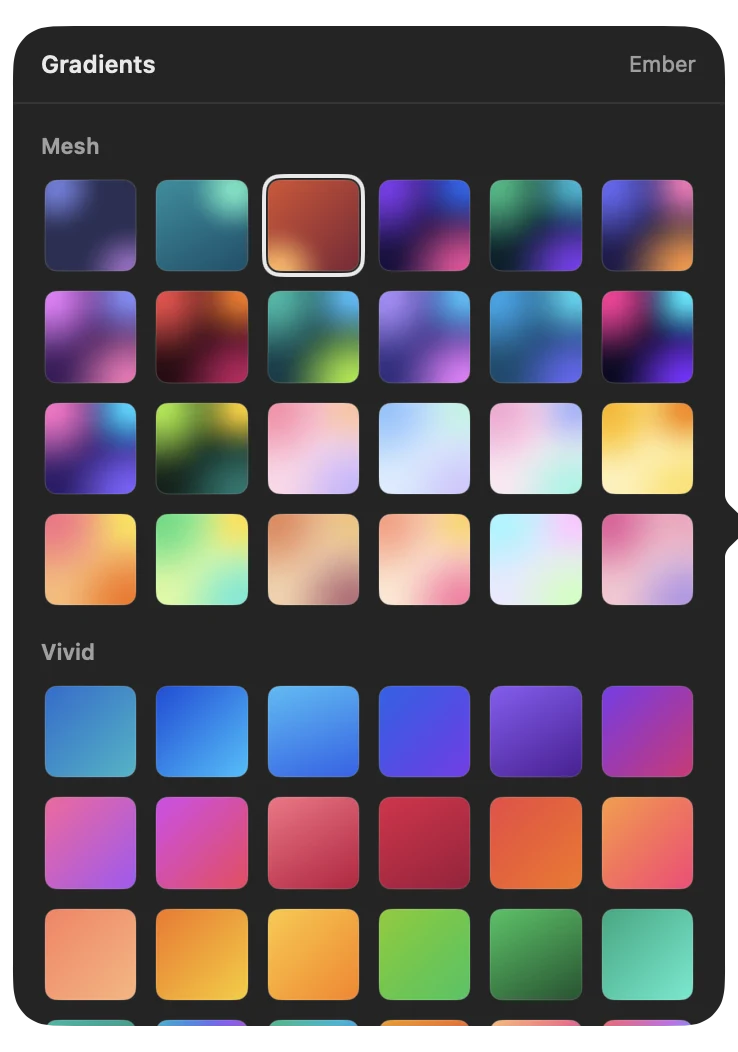
Pick one of 95 gradients, a colour, or your own image. Or use none, for a transparent PNG.
Frame
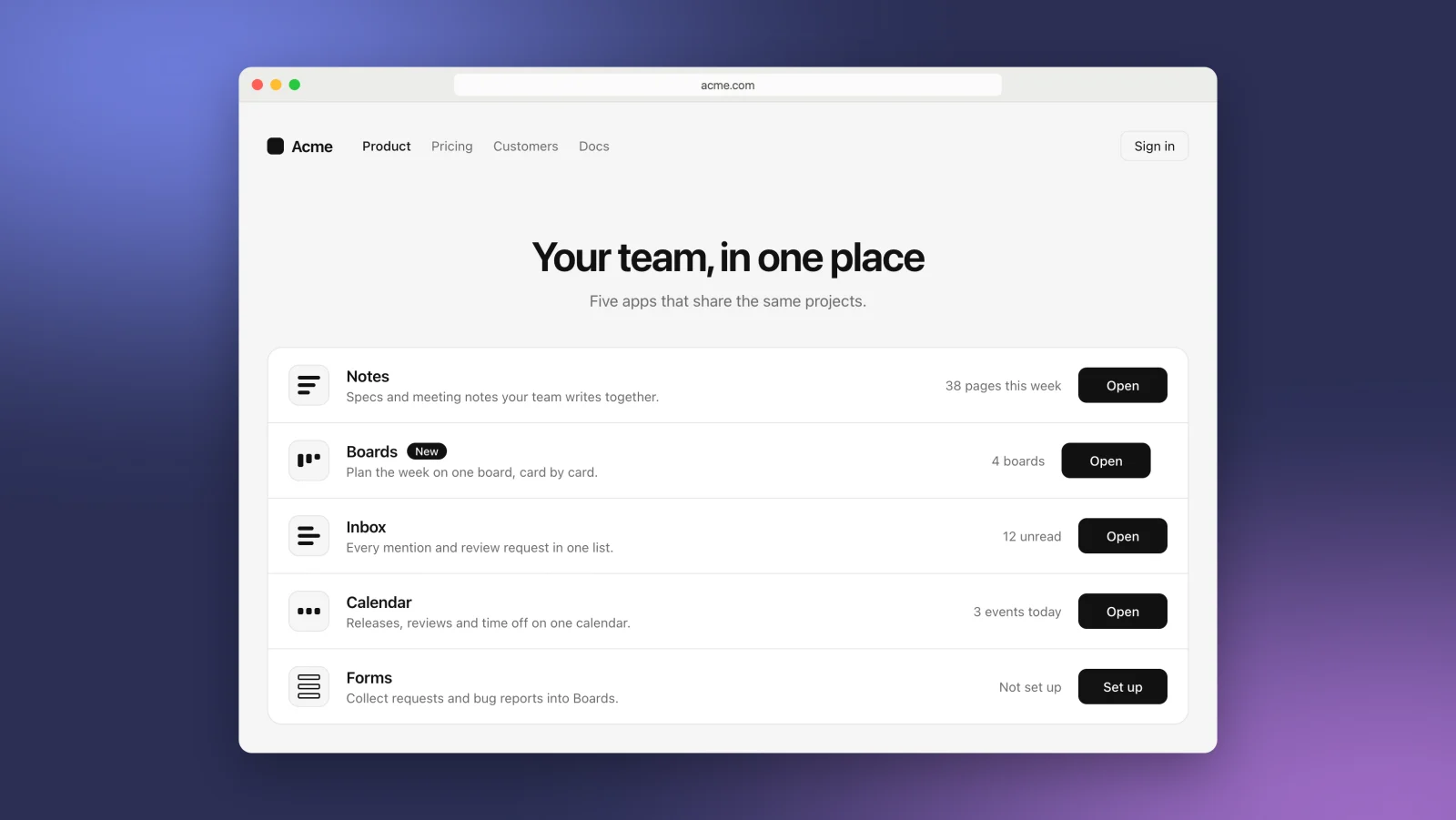
Put it in a window or a browser frame, or leave it bare. Set the padding, corners, and shadow.
Size
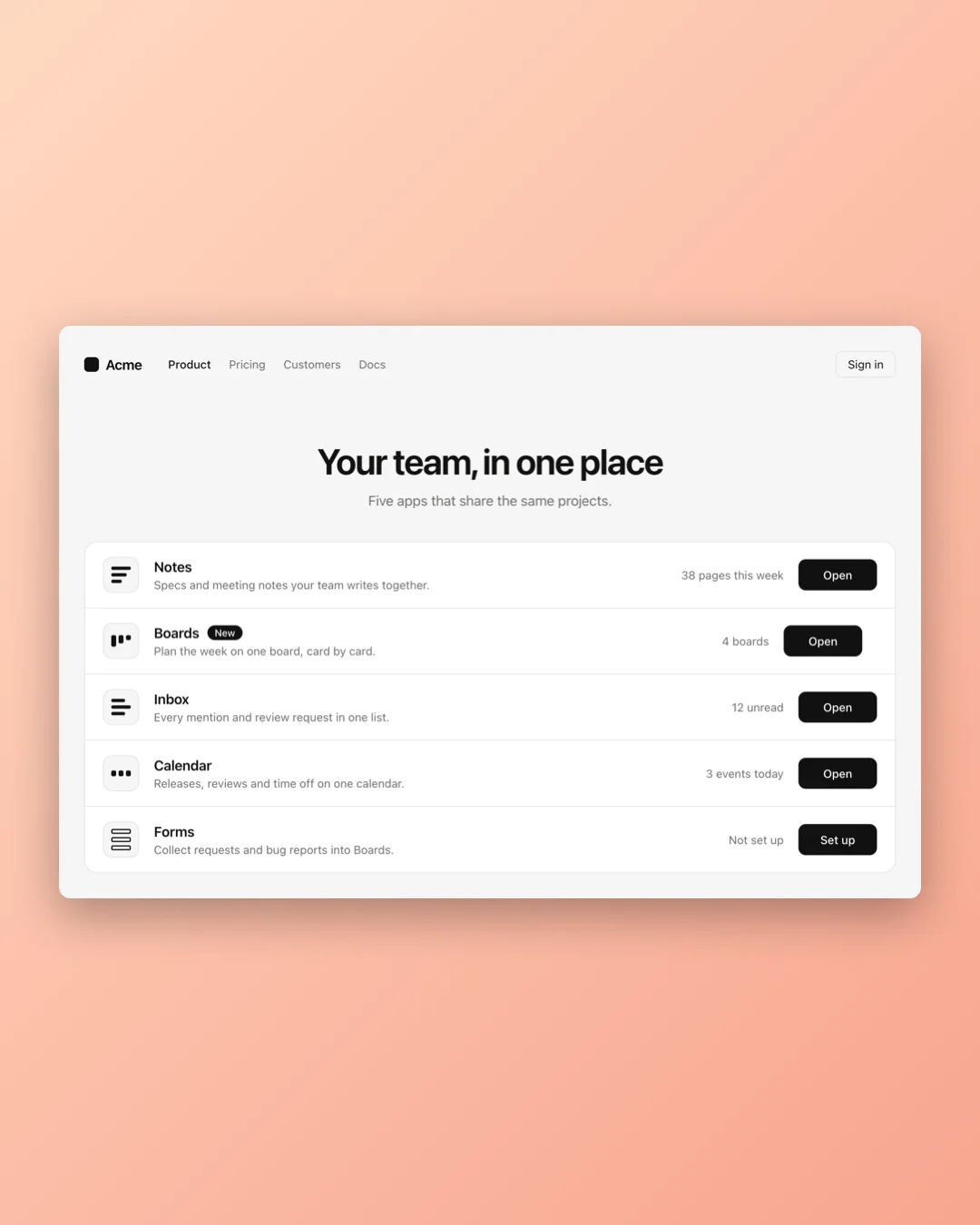
Choose a ratio, a size for X, LinkedIn, Instagram, Open Graph, or YouTube, or type your own width and height.
Everything else
Open it
Click Share in the editor. Or hold a thumbnail in the island or the toast and click Share. You can also right-click it for the same thing.
Balance
Evens out the margins around what you captured, so it sits in the middle of the background.
Copy, save, or send
Copy it, export a PNG, JPEG, or HEIC, send it with AirDrop, Messages, or Mail, or drag it into another app.
Presets
Save a look as a preset to use on other captures, or apply one automatically. Each capture also remembers its own look.
Your capture stays as it was
Export writes a new file. The capture itself stays plain, so search and your coding agent still read the screenshot and not the background.