Draw on your screen, and edit its text in the source
Bigshot 1.13 is out, and it has two features we're very happy to finally share.
The Pen lets you draw right on your screen, over any app, and saves what you drew as a capture your agent can read. Edit in Code Lens X-ray lets you click a line of text on screen, type new words, and have them saved in the source file they came from.
Both cut out steps every developer repeats all day. Marking up the screen used to mean a screenshot, an editor and an export. Changing a heading used to mean searching the codebase for the words. Now each one is a single step.
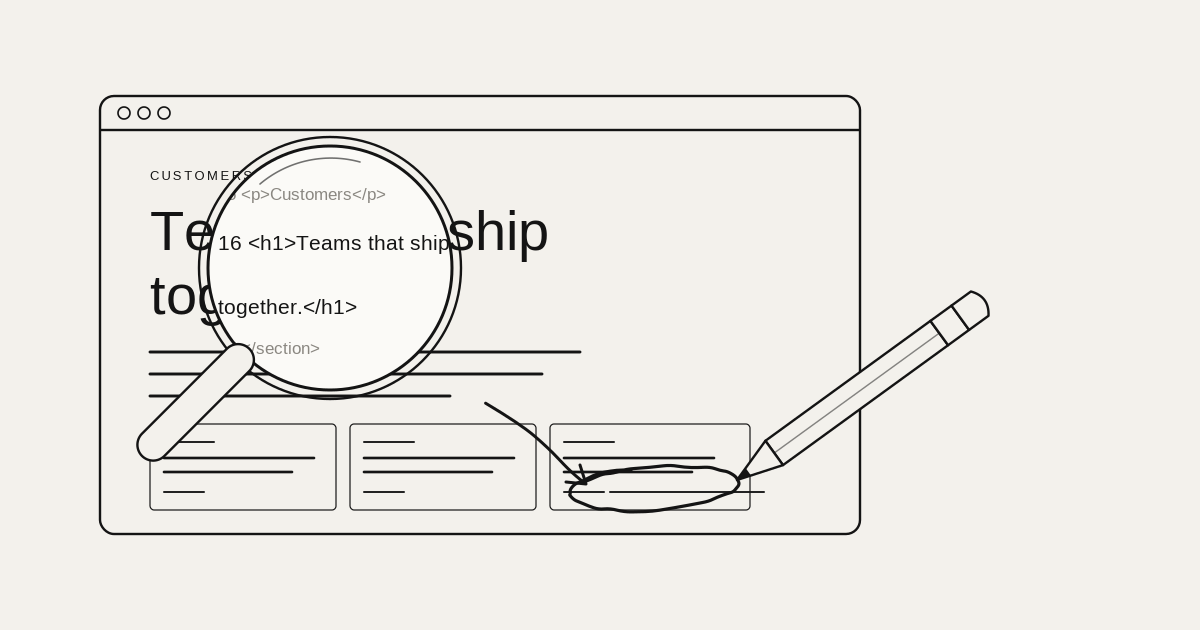
Everything below is real footage from the app, recorded on a demo site's Customers page. Nothing is mocked up.
The Pen: draw on anything
Point at the problem instead of describing it. Press ⌃⌥P and draw on whatever is on screen, whether that's your app running, a web page or a design file, and save it in one go.
Start the Pen from Draw on the island (D), from the menu bar, or with ⌃⌥P. A bar opens under the notch with five tools: Pen, Arrow, Line, Rectangle and Circle (P, A, L, R, O, the same keys as in the editor), then colours, widths, Undo, Clear and Close. Hold Shift to square a shape or snap a line to 45°.
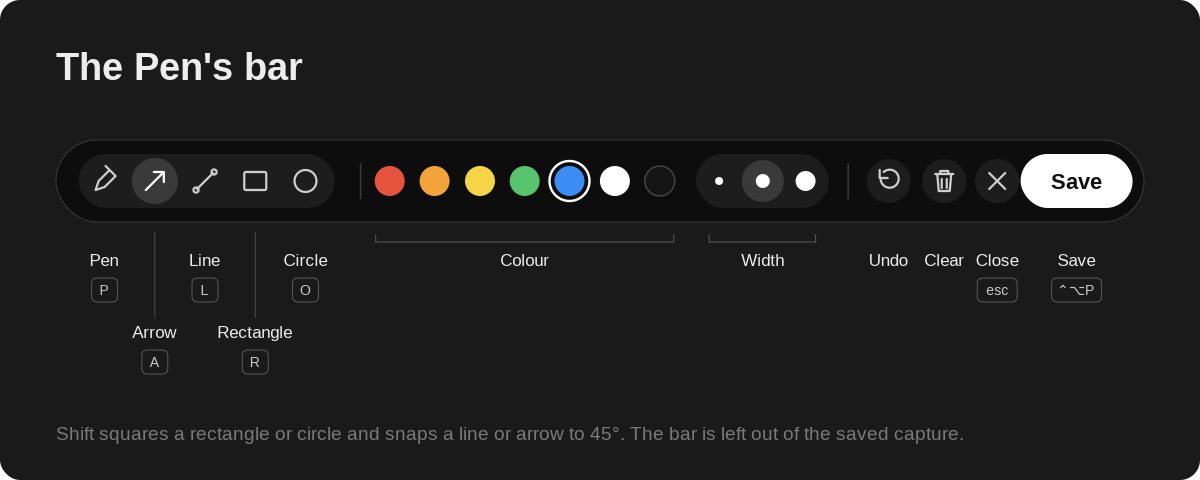
Save takes the screen with your drawing on it. The Pen's own bar is left out, and the strokes are drawn at the display's full resolution. Press ⌃⌥P again to save, or Esc to close without saving.
Why you'll reach for it:
- Marking up the live screen. You don't take a screenshot, open it in an editor, and then draw. You draw on the app while it is running and save once.
- Showing what you mean. An arrow to the wrong label or a circle around a cut-off line says more than a sentence describing where it is.
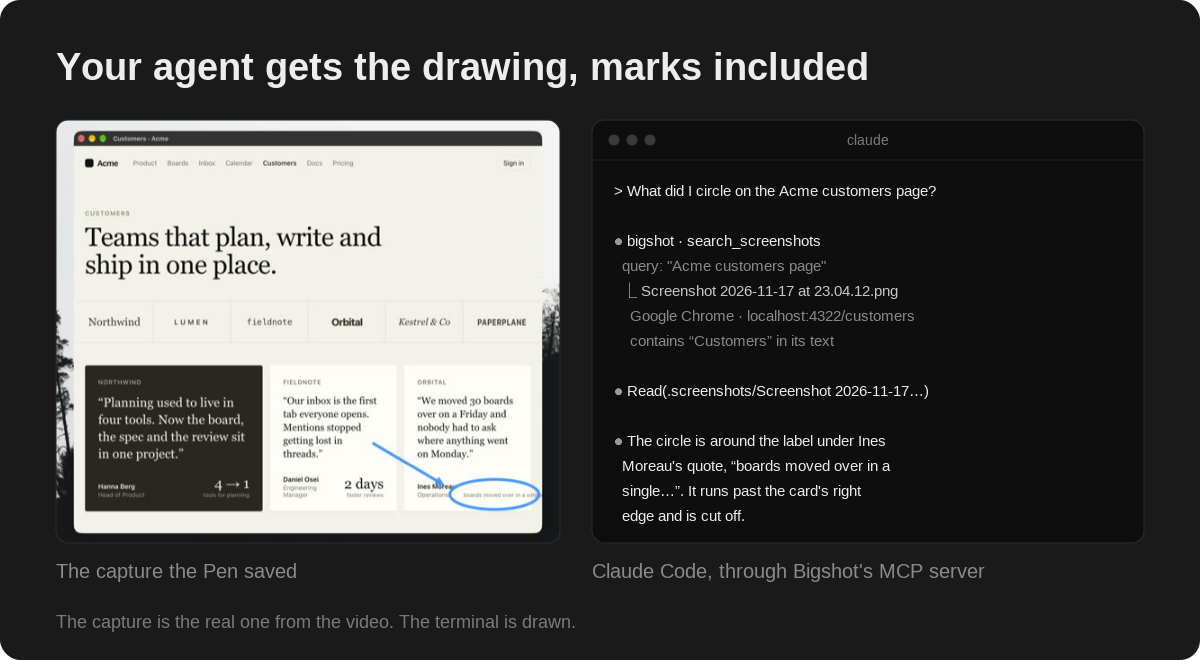
- Handing it to an agent. The drawing is saved like any other capture, into your Active Project. Claude Code and Codex see it the same way they see your screenshots, through the Project's MCP server or as screenshot context. The marks are part of the image, so the agent sees what you circled.
- The editor's shapes. Arrows and lines use the same drawing code as the editor, so they look the same as marks made there.
Edit in X-ray: change the words where you see them
X-ray already showed you the line of code behind every line of text on screen. Now you can change that text right there. Spot a typo, a clumsy heading or a stale label, click it, fix it, and it's fixed in your code.
After a lens, open X-ray and press E or click Edit. The page steps back and every string that can be edited gets a box. Click one and a field opens on the text, at the text's size, holding the string as the file has it, not as it was read off the screen. Type, then Return saves it to the file and line named under the field. Esc cancels, and ⌘Z undoes a saved edit.
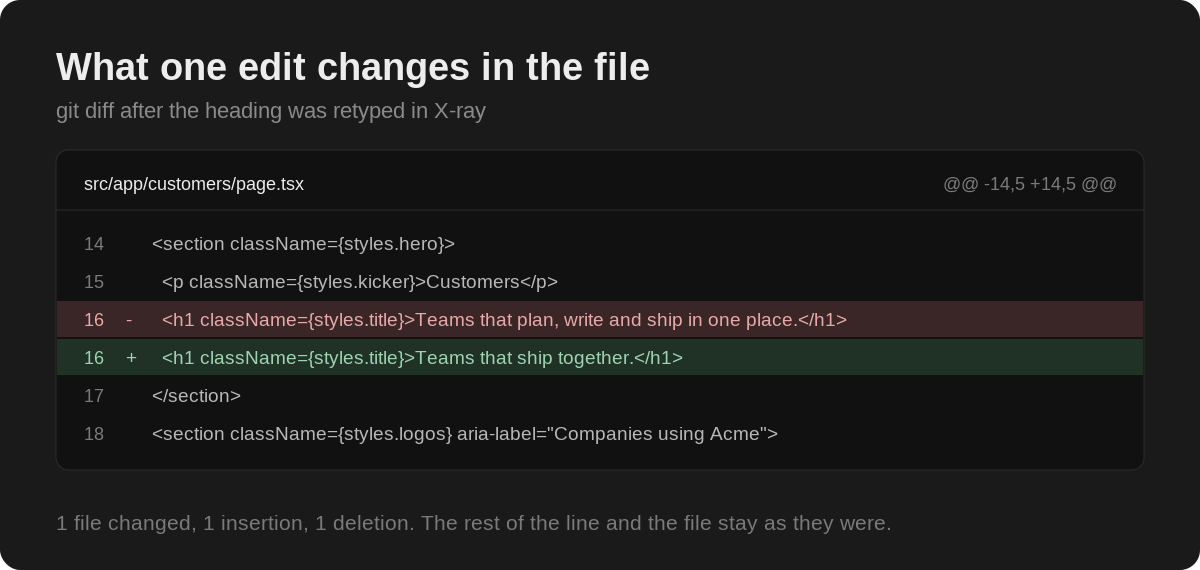
Only that string changes. The rest of the line and the rest of the file are left as they were. If your dev server reloads on save, as in the clip, the page shows the new text a moment later.
Where the edit lands
A Project points Bigshot at your repository, and its Code map records where each string in the code is printed and where it is kept. X-ray reads the screen and looks each line up in that map. Edit is the one part that writes: a single string in the file that keeps it. It doesn't commit, push or ask a model, so the change sits in your working tree like an edit made by hand, and your dev server shows it on screen.
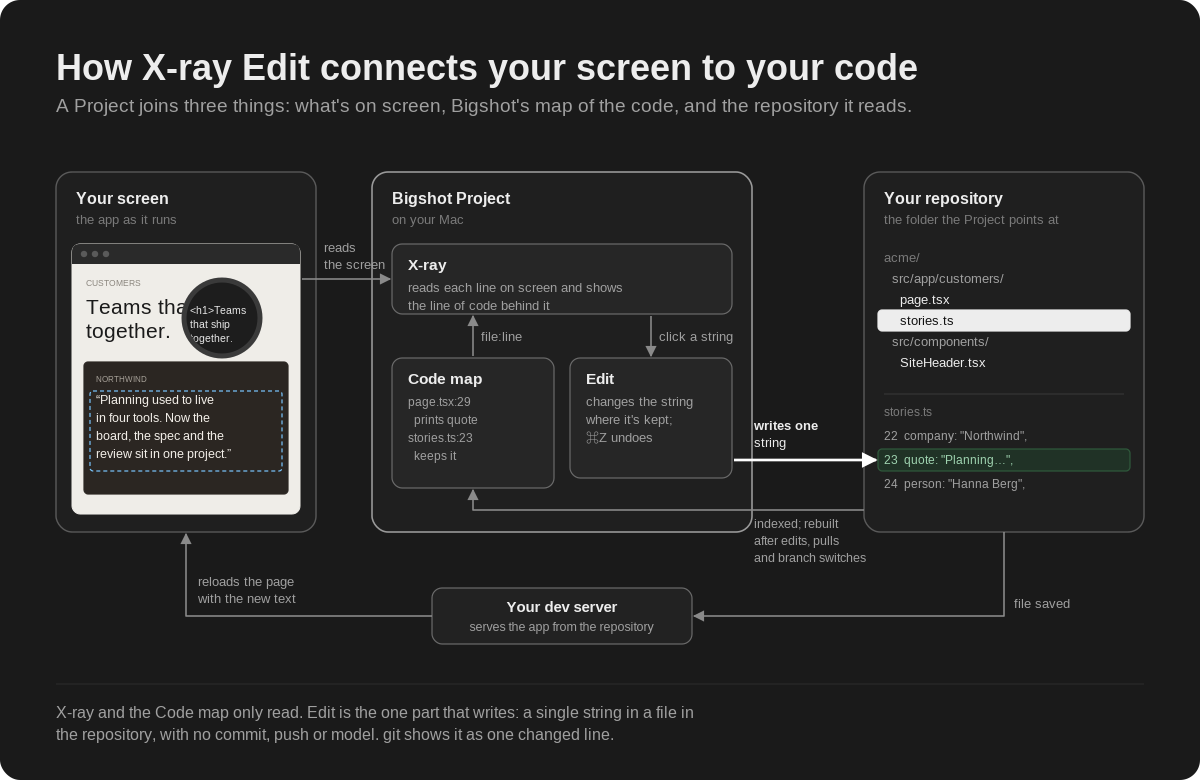
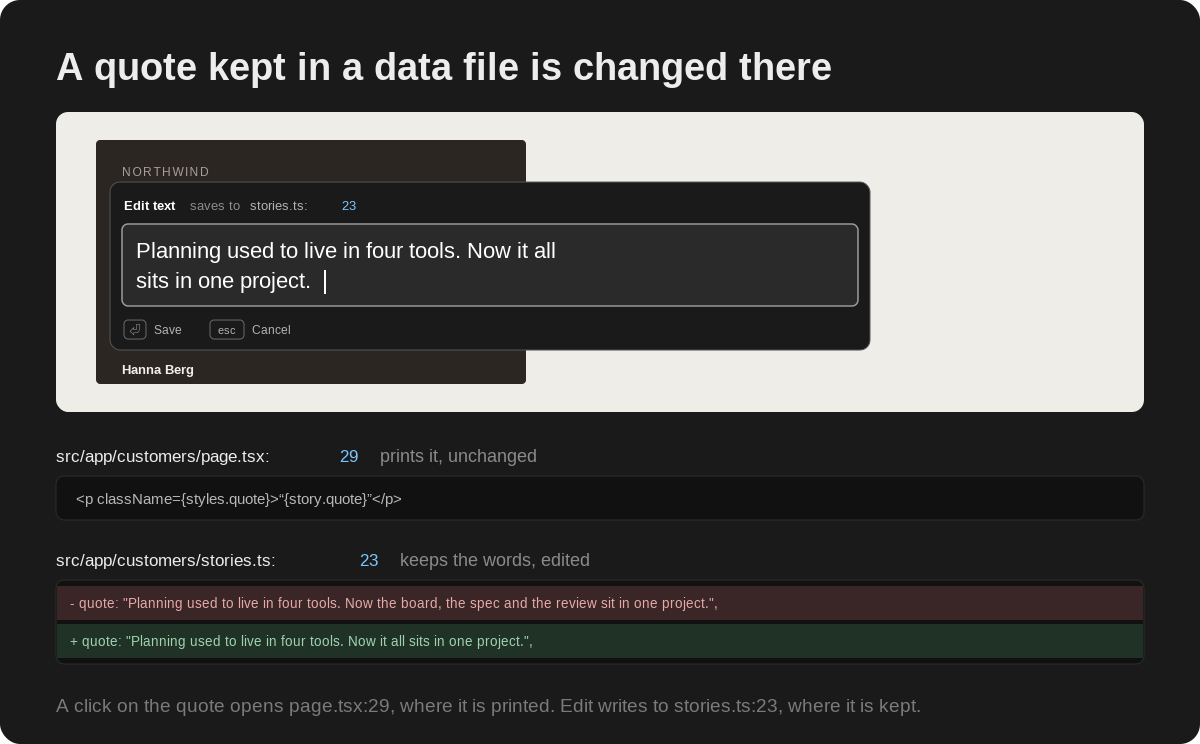
Text kept somewhere other than where it is shown is changed where it is kept: a translation is changed in its translation file, and an entry in a data list in that list.
Why you'll reach for it:
- Copy changes without searching. A heading, a button label or a line in a card is a click away. You don't grep for the words or work out which component prints them.
- Small diffs. Each edit changes one string, so the commit is one line you can read at a glance.
- Trying wording on the real page. Change a line, look at it in place, and undo if it reads worse.
- Leaving the agent the bigger work. A one-word change doesn't need an Agent Run. Edit it yourself and save the agent for changes that need code.
When Edit says no
Edit refuses rather than guesses. In each case Bigshot says why, and nothing is written.
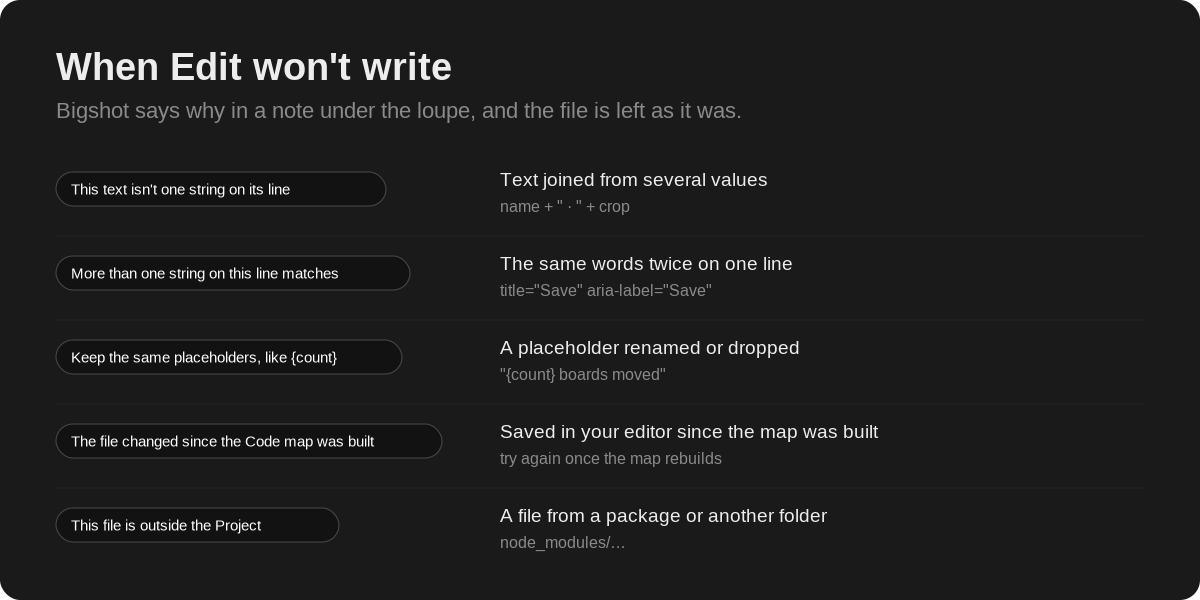
Try them today
Both are in Bigshot 1.13.0, including the free version with one Project. Update, or download Bigshot, and the Pen is ready right away: press ⌃⌥P and draw. Edit needs a Project with its Code map switched on, the same as the rest of Code Lens. Then open X-ray, press E, and click the first line you've been meaning to change.
More from the blog
Code Lens by example: four apps, one click to the line
Code Lens over a Python page, a zsh script, a Mac app and an iPhone app. What it labels, what repository search finds for the same text, and what the labels did and didn't change for Claude Code.
Giving coding agents local search over your screenshots and code
Bigshot's MCP server lets Claude Code and Codex search screenshots and code with local embeddings. How it works, what it costs, where embeddings fail and what agents gain.
Do screenshots actually make LLMs better?
What the research says about giving AI agents screenshots. In WebVoyager, screenshots raised task success from 40% to 59%, with very large gains on visual sites and none on others. What that does and doesn't tell us about coding agents.